Doodles rev 1.0. User Manual
Copyright © 2016 The Software and General Services Company, Naples, NY, USA.
1.0 How It Works
Doodles is a coloring book application for Android devices. The app is free from the Google PlayStore and it comes with a sample pack of 5 Doodles, called a DoodlesPack. Three of the sample Doodles come from other DoodlesPacks; the remaining two are blank sheets that you can draw on in the app; you can use these to play games and to draw your own Doodles. Doodles is suitable for all ages, but most DoodlesPacks are intended for adolescents and adults. Neither the Doodles app nor DoodlesPacks collect any information about you or your location, activities and so on.
Additional Doodles may be purchased from the Google Play store for very small amounts of money. DoodlesPacks each contain 5 Doodles and come in category collections - strange creatures, geometric patterns, and so on. Once a DoodlesPack is installed on your device it will appear in the Doodles DoodlesPacks selection list the next time you start the Doodle Selector. DoodlesPack are listed as apps by Android and can be uninstalled if you no longer need a DoodlesPack and you want the space back. Leaving a DoodlesPack installed does no harm and uses no Android resources other than a little space.
When you work on a Doodle, a copy of your worked Doodle is kept in protected app space. A copy will be kept for each Doodle that you color and you can pick up work on it as often as you like. The in-work Doodles will appear in the Doodle list for a given package and can be selected in the same way as a stock Doodle.
You can delete an in-work Doodle, and you can make a copy of it, still in protected space, to branch your work in many directions. You cannot delete a stock Doodle. When you reach a point where you want to show your work to others you can save an in-work Doodle to the SD card on your Android device where the Android gallery will find it, and from there you can share it in the usual way. The in-work copy is still there and you can continue with it at any time.
Some of our DoodlePacks include hand-drawn Doodles. The lattice of these Doodles will appear rough compared to the geometric Doodles, and that's how they are supposed to be.To some of our Doodle artists, a Doodle lattice drawn with a pen is as much a creative and passionate experience as any other form of fine art.
2.0 Quick Start
This app installs from the Google PlayStore.
Start the app by clicking on the icon  on your Android device desktop.
The app may be used in both portrait and landscape orientations - choose the one best for the Doodle you are coloring. Initially, the app will open a default Doodle. The Doodle will have usually a pure black latticework; the initial drawing color is dark red and the color pure black is locked - you can't fill the latticework.
To fill any whitespace, simply tap on it. The whitespace will be filled with the currently selected color.
To make small whitespaces large enough for normal fingers to find easily, you can zoom in to any part of the Doodle with a two-finger pinch-in gesture. Likewise, you can zoom out with a pinch-out gesture and you can move the Doodle around on the screen with one-finger sliding gestures. You can also rotate the Doodle with a two-finger rotate gesture. If you move the Doodle right off the screen and you can't find it you can tap the Doodle Locator icon  and the Doodle will come back to center screen at initial scaling and orientation.
To change the fill color, tape any one of the palette colors in the toolbar.
If you make a mistake, tap the undo icon  and the Doodle will go back one operation - this is a single step undo so tapping the icon again will not take you back further steps.
To draw lines on the Doodle rather than fill whitespace, tap the Line icon icon  . This will put you in "Line Mode". The single finger pan gesture is now disabled because the app can't tell the difference between a finger drawing a line and a finger moving the Doodle. Draw your finger along the line that you want painted in and it will be drawn at the current brush thickness and in the selected color. The brush thicknesses can range from 1 to 25 pixels; choose your brush thickness by clicking the icon
  .
.
You can already do a lot with these few operations, but the app does much more. The rest of this user guide will cover details of all these operations, plus opening new Doodles, saving and deleting your work, selecting colors from a color wheel and recovering a color that you have used before in your Doodle. You can even change the "Lock Color" - a protected color - so that you can color the latticework of the Doodle itself.
3.0 Main Screen Icon Operations
The operations described in this section are triggered from icons that appear in the main Doodle screen - you can see them all the time. Other, less frequent operations, are contained under a pop-up menu which is described in section 4.
3.1 Start The App
You will find this icon on your Android device desktop. Tap it and you will start the "Doodles" app. The app will open with:
- The default Doodle for the version and package of the app, or the last Doodle that you worked on.
- A default color palette
- The default color is dark red
- The default lock color is pure black
- The default brush size is medium
3.2 Fill Any Space
Tapping this icon puts you into "Fill Mode" . In this mode, whenever you tap a pixel in the Doodle, all the pixels of that color that touch together without a break will be filled with the current palette color. The app will stay in Fill mode until you select "Line Mode".
3.3 Draw a Line
Tapping this icon puts you into "Line Mode" . In this mode, whenever drag your finger across the screen, a line with the thickness of the currently selected brush will be drawn along the path of your finger.
Note that in this mode, single finger pan gestures are disabled. To move the Doodle you have to switch back to Fill mode.
Note also that LOCK COLOR DOES NOT APPLY IN LINE MODE. You can draw over the lattice too!
3.4 Change the Brush Size
The brush is used when drawing your own lines into a Doodle. You might be adding new fill areas to the Doodle, or shading a colored fill. The brush size is set by a slider control, and can be anything between 1 and 25 pixels; the default brush size is 5 pixels. Tap the icon shown to the left and this dialog will appear:
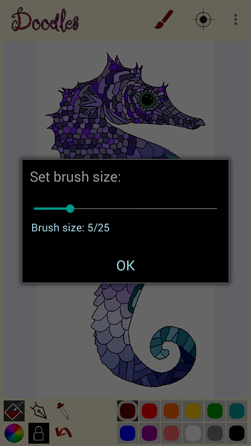
Either tap the slider bar or move the slider control with your finger until it settles on the brush size you want. Then tap the "OK" button and you will be returned to the main Doodle screen.
3.5 Change Color
Tap on any color in this palette and that will become the color used to fill space and draw lines. The currently selected color is highlighted with a black background as in the dark red color in the image to the left.
3.6 Select A Color From The Doodle
You can recover any color that you have used before in the Doodle.
- Tap on the Eye Dropper icon
- A message will pop up briefly asking you to pick the color you want from the Doodle.
- Tap any color in the Doodle.
- The icon for the currently selected color will turn to the picked color, and that color is now current.
3.7 Select a Color from the Color Wheel
You can change the current color to any color in the RGB color space by clicking on the color wheel icon shown to the left. This dialog will appear:

This dialog shows a tone map for your currently select color so it will look different for different initial colors. Here the initial color is dark red so the dialog shows a dark red tone space. The location of the current color in this tone space is indicated by a small circle. You can select from this tone space by clicking anywhere in the large colored square, or you can change the tone space completely by clicking a color from the rainbow strip on the right. Your initial color and selected color are shown in color blocks below the tone map.
Select your color and click "OK". You will be returned to the Doodle screen and the selected color icon will show your new color.
3.8 Lock a Color
Doodling, like drawing in a coloring book, usually involves filling in the blank spaces within the black lattice with color. Normally you don't want to paint the lattice, just the spaces in between. However, sometimes you want to change the color of the lattice itself. You can do this by changing the "Lock Color'". The Lock Color is one color that the Fill operation will not change. Most Doodles we distribute have black lattices and the default lock color is pure black; this is indicated in the icon (shown to the left) by a black background. You can change this as follows:
- Tap on the Lock Color icon
- A message will pop up briefly asking you to pick the color you want to lock from the Doodle.
- Tap the color you want locked in the Doodle. If you haven't already used this color, then before you start this process draw a short line in that color somewhere on the Doodle that you can paint over later.
- You will be returned to the main Doodle screen. The color you selected is now the lock color, and this will be indicated in the background color of the Lock Color icon.
This is what the Lock Color is on will look like if you choose pure red as the lock color.
4.0 Menu Selection Operations
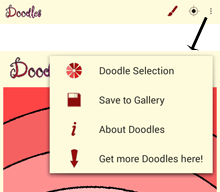
The operations described in this section are triggered from icons that appear in a drop-down menu triggered from the main Doodle screen. This menu appears when you tap the Android Toolbar menu icon, as in this picture:
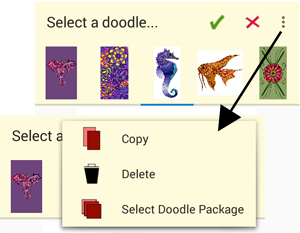
If you are in the "Select a Doodle" screen then this process carries its own drop down menu. This is done because on some devices there isn't enough room on the tool bar for all the icons that want space. If you can't find the icon you are looking for, tap the menu button (the three dots in a vertical line to the right of the current toolbar) and any overflow icons will appear. This is what the process might look like:
4.1 Get Help
Clicking this information icon will bring up an "about this app" panel that tells you what this app is and links to documents that:
- Detail your license to use this app
- Provide copyright, licenses, and notices required by libraries we used in the making of this app
- This user manual
Taping this icon brings up the following dialog (this image is too small for you to read - it's only for illustration):
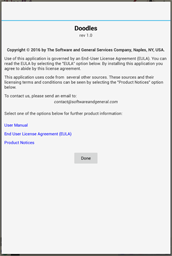
You can click the links in it to get this and other documents.
4.2 Open a New or Saved Doodle
Clicking on the "New Doodle" icon shown to the left brings up this dialog:
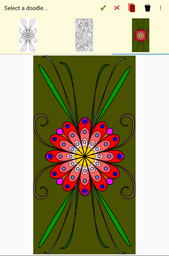
This dialog shows all the available Doodles in the currently active package, both built-in and saved by you, as a thumbnail strip. The built-in Doodles come first in the strip, followed by saved Doodles. The currently selected Doodle is shown enlarged in the larger display panel below the strip. The thumbnail strip is scrollable - there may be more built-in and saved Doodles than can be comfortably display across the screen. To move the strip to the left or right drag your finger along the strip in the appropriate direction in a swipe gesture.
Note that file dialog carries its own drop-down menu, and that icons might appear either in the toolbar or the menu depending on how much space your Android device assignes to the toolbar. If you can find the icon you want in the toolbar then it will be in the drop-down menu.
To select a Doodle, first tap its icon in the thumbnail strip; a larger image of the Doodle will appear in the display panel. If you are happy with the selection, tap the green check icon 
If you change your mind and would rather pick a different Doodle, again just tap the thumbnail and the new selection will appear in the display panel.
If you change your mind completely and you don't want a new Doodle at all, tap on the red cross icon  and you will be returned to the main Doodles screen.
4.3 Delete a Saved Doodle
Deleting a saved Doodle is also done from the File Selection dialog.
Select the Doodle you want to delete and tap the trash can icon 
The Doodle will be irretrievably deleted and the thumbnail will disappear from the strip.
You cannot delete a built-in Doodle - only those you have saved yourself.
4.4 Copy a Saved Doodle
You can copy a worked Doodle by clicking the icon to the left. This will copy the currently active Doodle, and lets you branch your work from the point of copy onwards.
4.5 Saving a Doodle
You can save your artwork as an image in your device gallery anytime, and as often as you want to. When you are at a stage in your work that you want to save an instance of the Doodle you are working on, bring up the menu as described at the beginning of section 3 and tap the "Save" icon shown to the left.
Every time you tap this icon you will create a new copy of the Doodle. To work on an existing Doodle, open it from the File Selection dialog as described in section 3.2.
4.6 Change Doodle Package
Doodles come in packages called DoodlesPacks that are installed on your Android device. In order to keep down the clutter when you choose a Doodle to work on the "Doodle Open" operation shows only the stock Doodles and your worked Doodles in the currently active package. You can change active package by tapping the icon to the left. This will bring up a list of the packages you have installed and an icon showing a part of one of the Dooldles in the package. This is what the Doodle package selection menu looks like:
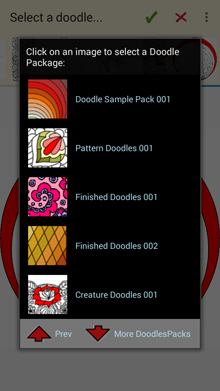
Tap on the icon characterizing the package that you want. A short message will fade in telling you what package you have chosen. The "Open Doodle" pick will now show a different selection of Doodles from the new active package. If you can't see the DoodlesPack that you want then tap on the "More DoodlesPacks" arrow - there may not be enough room on one screen for all of them.
4.7 Getting More Doodles
Operation
DoodlesPacks are available at the Google PlayStore. You can go directly to the PlayStore and search for them, or you can click the icon to the left which appears in the Doodle Selector menu. This will take you to a list of available DoodlesPacks. Tap the DoodlesPack that you want and you will be taken to the appropriate page in the PlayStore. This is what the DoodlesPack list may look like:

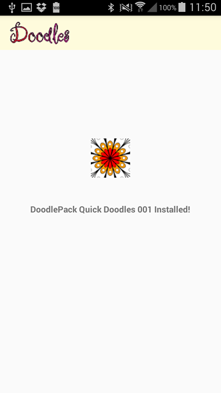
You can buy the DoodlesPacks in the usual Google Play Store way - this app doesn't handle any part of this transaction, it just points you to the right place in PlayStore. The DoodlesPack will install as an app in its own right and an acknowledgement screen similar to the image shown next will appear.
4.8 Sharing Your Artwork
You can share you artwork by all the usual Android methods from the Gallery. Open the Gallery on your Android device, select the Doodle you want to share, and tap the "share" icon 
Only Doodles saved to the device gallery can be shared.